Integrate Voice in Frontline
Warning
Voice Calling in Frontline will follow the same routing logic used for Messaging. Make sure to first configure Inbound Routing and your Outgoing Conversation Callback URL.
The Voice in Frontline integration will allow you to make and receive voice calls to and from your customers, all from the Frontline mobile application. In order to integrate the voice feature, you will need a Twilio phone number with voice capabilities. You will also need to make some configuration changes in the Twilio Console to get up and running with making voice calls. Let's get started!
To check if your Frontline number is voice enabled, navigate to Phone Numbers > Manage >Active Numbers in the Twilio Console.
Each active phone number includes details on its capabilities. Verify that your Frontline number has the Voice icon, which means it is voice-enabled. If it does, you can skip down to the Enable Voice in Frontline section below to continue Voice feature integration!
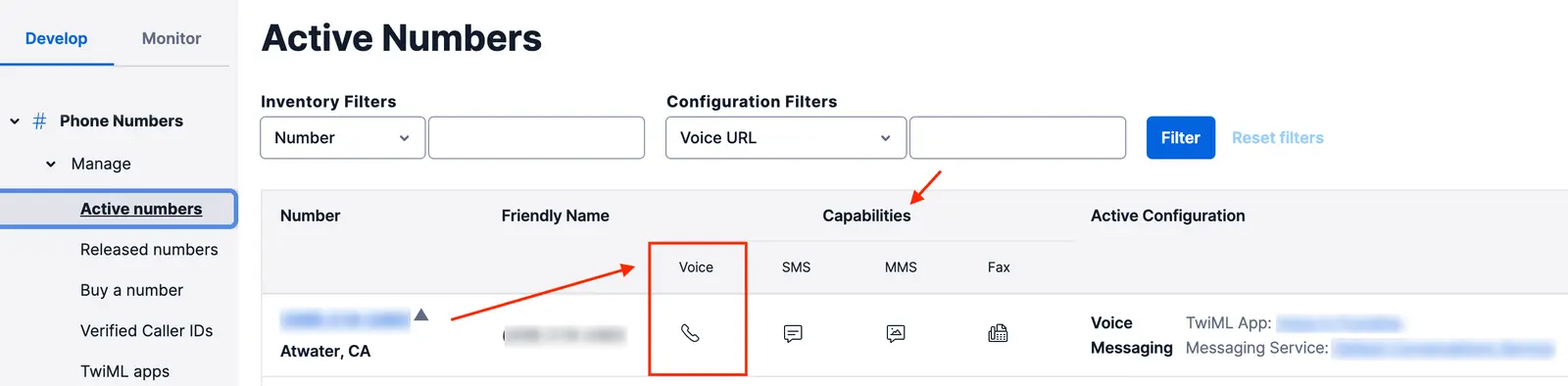
Otherwise, you'll need to purchase a voice-capable phone number.
To purchase a number with Voice functionality, navigate to the Buy a Number page in the console, check the Voice box and click Search.
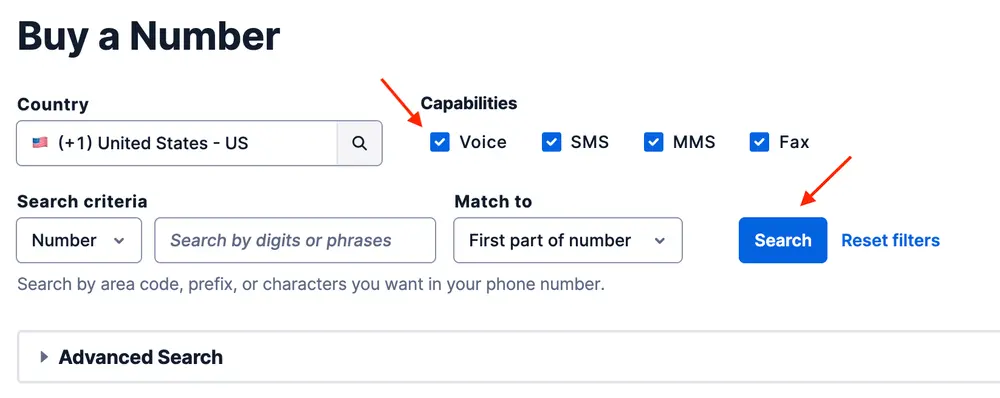
You'll see a list of available phone numbers and their capabilities. Find a number that you like and click Buy to add it to your account.
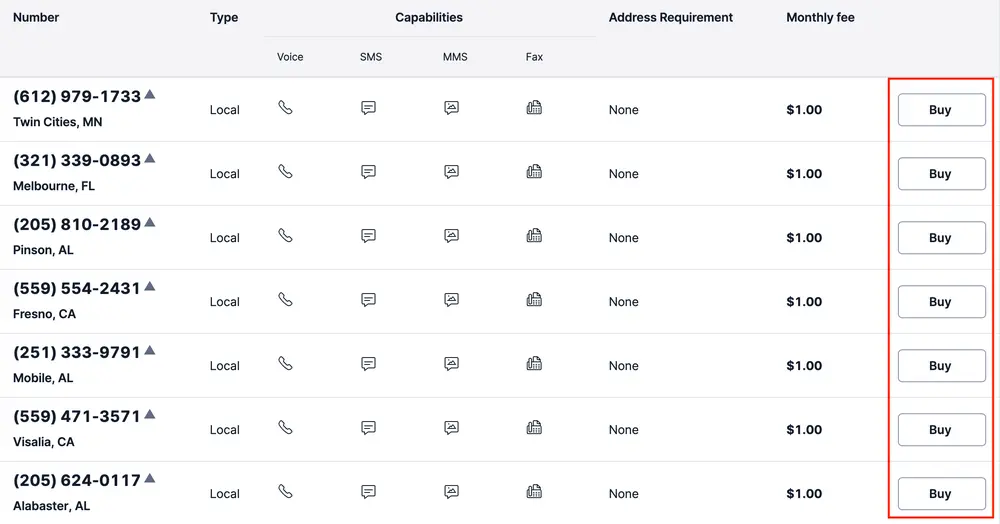
Now that you have a voice-enabled phone number, we're ready to enable Voice functionality in Frontline!
There are two configuration steps you'll need to follow to enable Voice calling:
- Select the Enabled radio button on the Frontline Voice calling Console page.
- Connect the TwiML App to your Twilio phone number.
Navigate to the Frontline Console. Go to Manage > Voice Calling section and click the Enabled radio button.
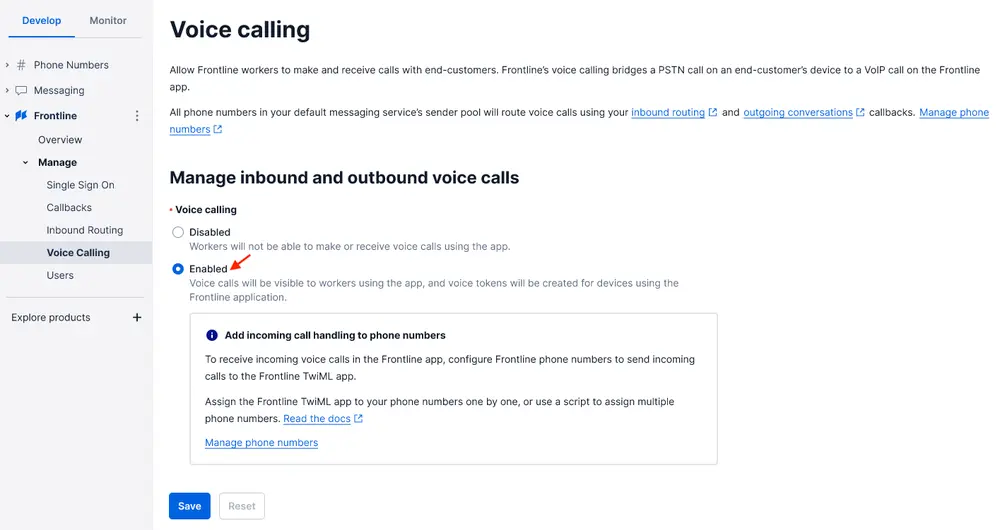
Click the Save button.
Once the Enabled option is selected, the following will occur:
- A TwiML App named Voice in Frontline will be generated. You will later configure your voice capable phone number to use this TwiML App to handle calls. This TwiML App will act similarly to a webhook, and handle incoming and outgoing voice calls for your Frontline service.
- You will see the Voice calling enabled notification in the upper right-hand corner of your console window, signifying that Voice calling is now enabled for your Frontline application.
Next, we will assign the voice capable phone number we purchased earlier to the newly generated TwiML App.
You will need to tell Twilio to look to this newly-created TwiML App for instructions for any incoming or outgoing calls to your Twilio phone number.
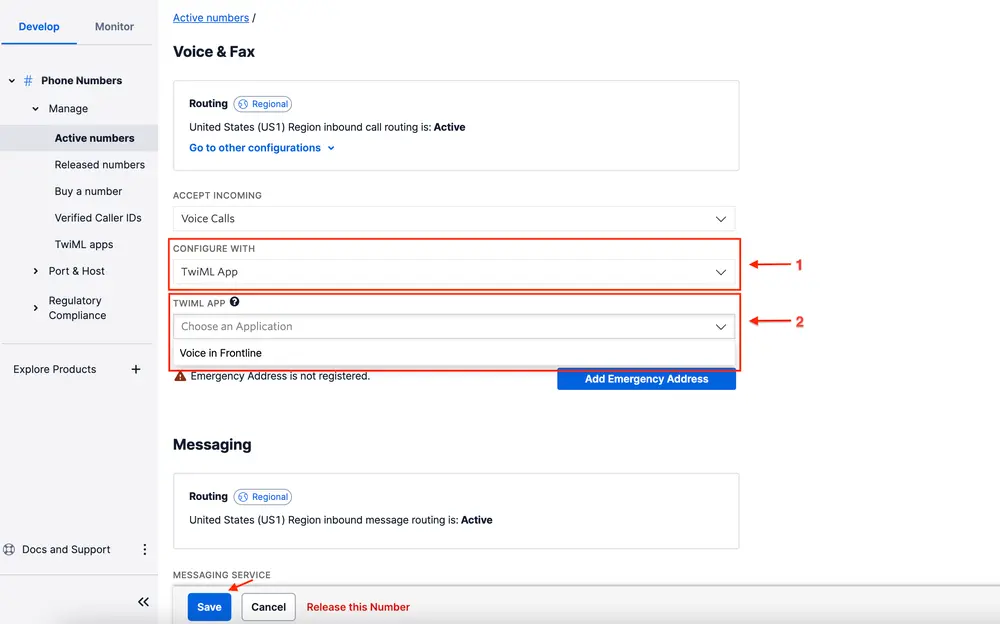
- In the Console, navigate to Phone Numbers > Manage > Active Numbers
- Click on the phone number you purchased to use with Frontline. Scroll down to the Voice & Fax section
- In the Configure With dropdown, select TwiML App
- In the TwiML App dropdown, select the Voice in Frontline TwiML App
- Click the Save button
Info
If your Frontline TwiML App is associated with many Twilio phone numbers, this manual process likely won't be the best solution. For example, you could automate this process by writing a script using Twilio's Phone Numbers REST API.
Frontline workers will now be able to receive incoming voice calls and make outgoing voice calls.
To disable Voice calling functionality from your Frontline application, click the Disabled button on the Voice Calling console page and click the Save button.
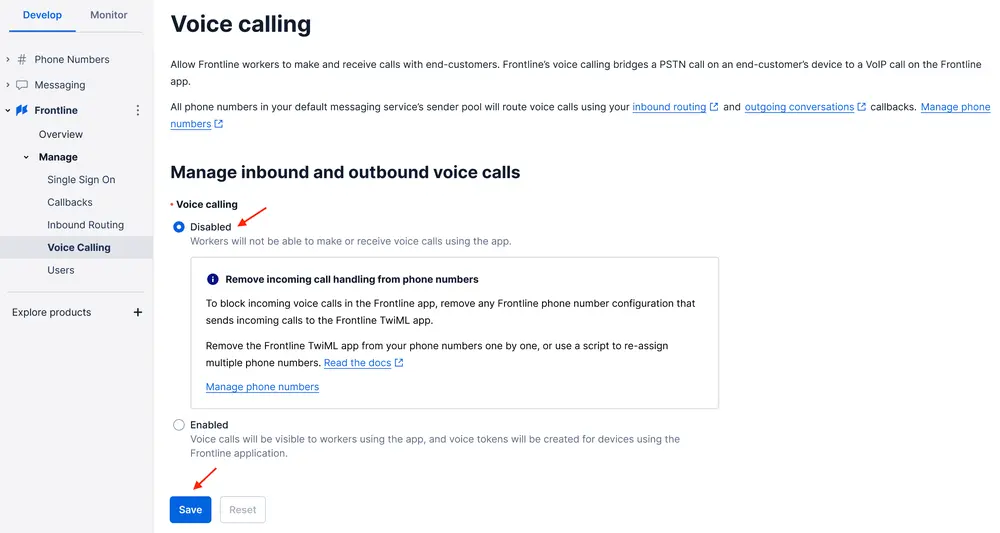
Once Voice calling is disabled:
- You will need to remove any Frontline phone number configuration to block incoming voice calls to the Frontline application.
- You will see the Voice calling disabled notification in the upper right-hand corner of your console window, signifying that Voice calling is now disabled for your Frontline application.
- Workers in the Frontline app will no longer be able to place or receive new phone calls but will see records of any previously placed phone calls in their conversation history.
In the Console, navigate to Phone Numbers > Manage > Active Numbers. Once there, select the voice capable number you purchased earlier.
Scroll down to the Voice & Fax section. In the Configure With dropdown, select "Webhook, TwiML Bin, Function, Studio Flow, Proxy Service", as shown below.
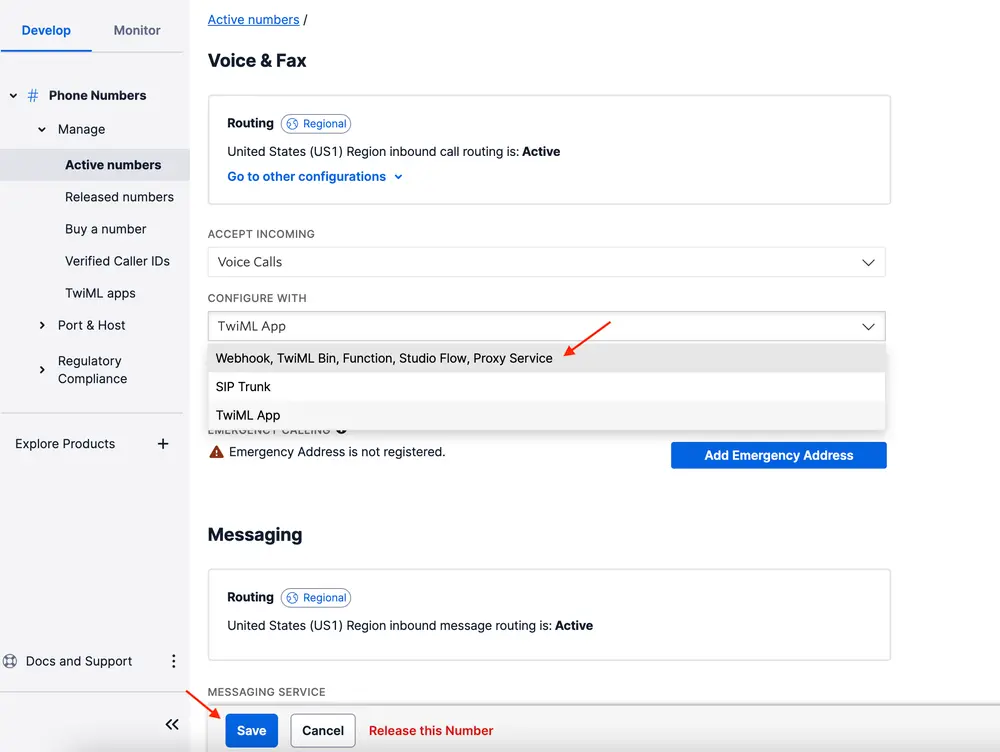
Click the Save button. Now, the Voice configuration for a phone number is disabled.
You will see a notification message at the top of your console window, signifying that the number was successfully updated.
Info
If your Frontline TwiML App is associated with many Twilio phone numbers, this manual process likely won't be the best solution. For example, you could automate this process by writing a script using Twilio's Phone Numbers REST API.
To make an outgoing call from an ongoing conversation with a customer, click the blue phone icon in the upper right-hand corner of the conversation screen.
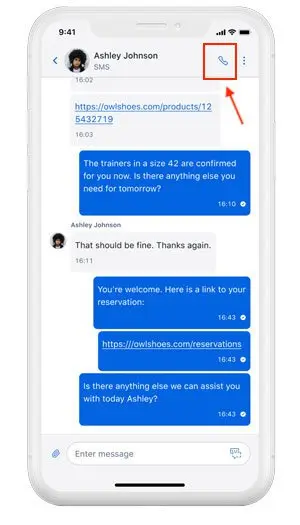
You can also place a call from a particular customer's detail page. Navigate to a Customer Details page and under Contact details select the phone number that you want to call.
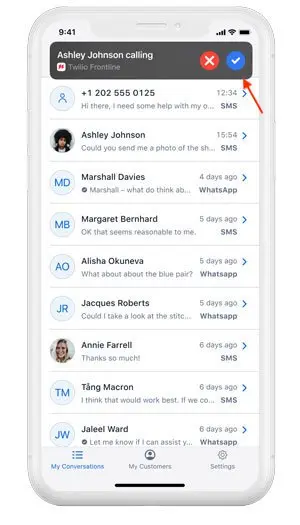
When you receive an incoming call, you'll see a Frontline notification banner at the top of your mobile device. Click the blue check icon (iOS) or the green answer button (Android) to accept the call.
You may see two types of error messages in the Voice calling Frontline Twilio Console:
-
Frontline Missing Phone Numbers: You will see this error message if the Messaging service that is connected to the Frontline Conversation service doesn't have any assigned phone numbers in its Sender Pool.
-
To edit the Sender Pool in the Console:
- Click Messaging > Services in the left navigation.
- Click on Default Conversations Service.
- Then click Sender Pool in the left navigation pane.
-
-
Voice Calling Not Available: If the TwiML app required to enable Voice calling on the Frontline application was updated or removed, you will need to contact our support teamto restore Voice calling functionality.
Would you like to customize Frontline's Voice behavior? Go to the Advanced Voice Configuration page to learn how you can modify inbound and outbound call behavior in Frontline.